

Android Work Profile separates personal and professional data on the same device. But setting up security policies one phone at a time? That doesn't scale. Here's how to configure Android Work Profile devices remotely using an MDM.
What is Android Work Profile?
Work Profile is an Android Enterprise feature that creates an isolated container on a personal device. Work apps, data, and accounts live inside this container. Personal apps stay outside it. The two sides don't mix.
For IT teams managing BYOD fleets, Work Profile solves the fundamental tension: employees keep control of their personal phone, while the company's data stays protected inside a managed space. If the employee leaves, IT can wipe the work container without touching personal photos or apps.
The key challenge is configuring these profiles at scale. When you have 50, 200, or 1,000 devices, you need remote configuration through a mobile device management solution.
How to configure Work Profile devices remotely
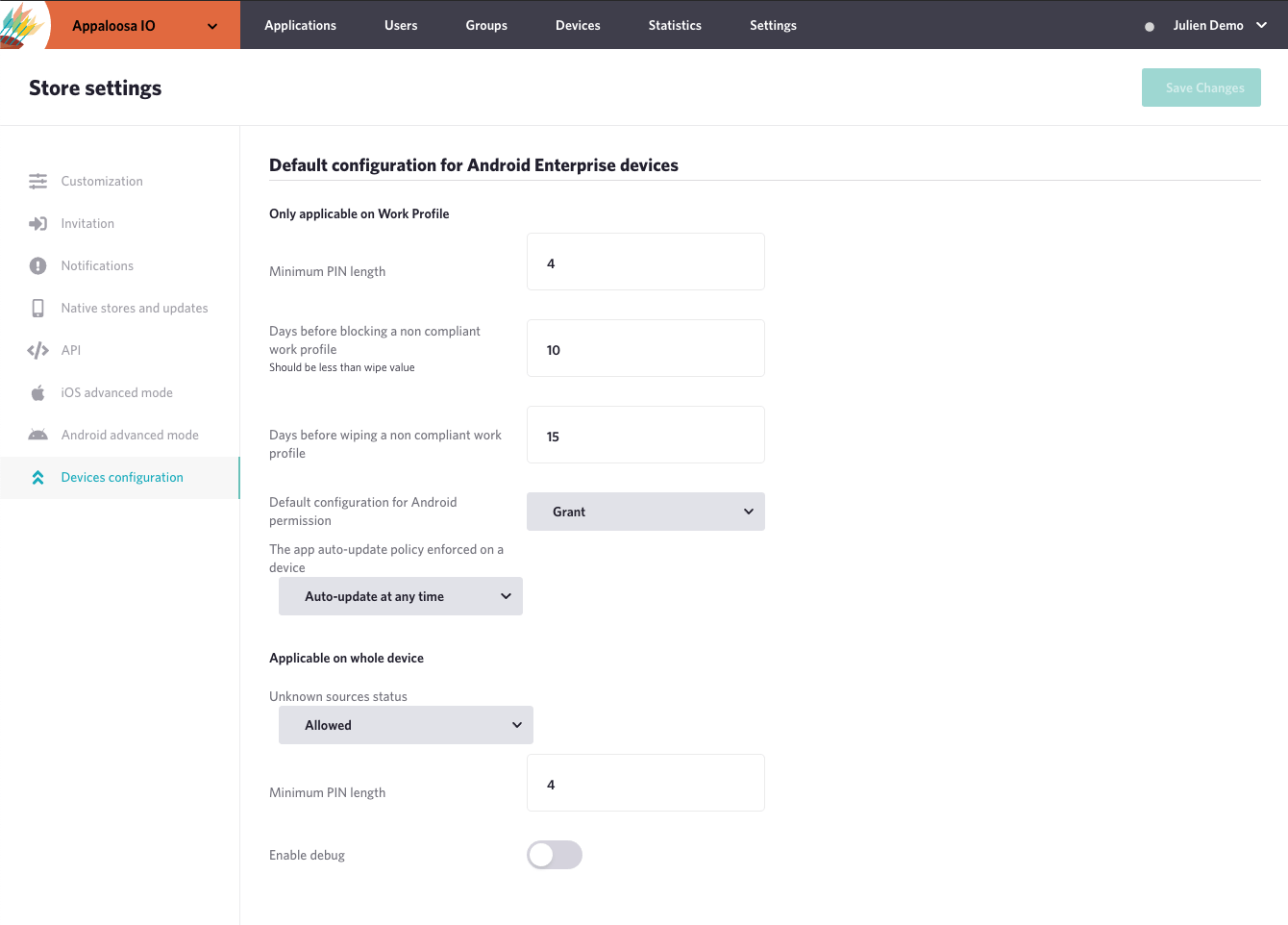
With Appaloosa, remote Work Profile configuration happens through the "Devices configuration" tab in your store settings. Once you've activated Android Enterprise, two configuration sections become available: one for Work Profile devices (BYOD), and one for fully managed devices (corporate-owned).
Work Profile security settings
These policies apply to the work container on personal devices:
- Minimum PIN length: enforce a minimum passcode complexity for the Work Profile. This is separate from the device lock screen. Users can have a simple swipe unlock for personal use, but a 6-digit PIN for work apps.
- Non-compliance grace period (block): when a device falls out of compliance (outdated OS, weak passcode), the Work Profile gets locked after this delay. Users see a warning first, then lose access to work apps until they fix the issue.
- Non-compliance grace period (wipe): if the device stays non-compliant beyond this longer period, the Work Profile is wiped entirely. Corporate data is removed, but personal data remains untouched.
- App permission auto-approval: when an app update introduces new permissions, this setting controls whether those permissions are automatically granted or require admin review.
- Automatic app updates: force app updates to install automatically, so your fleet always runs the latest version without user intervention.
Fully managed device settings
For corporate-owned devices enrolled in fully managed mode, additional controls are available:
- Unknown sources: block or allow sideloading apps from unknown sources. For most enterprise deployments, this should be blocked.
- Minimum PIN length: same concept as Work Profile, but applies to the entire device.
- Debug mode: enable or disable USB debugging. Keeping this off prevents unauthorized data extraction through a connected computer.
Explore
See the full platform
Enrollment, apps, security, remote support: all in one place.
Explore Appaloosa →Why remote configuration matters for Android fleets
Manual device setup creates two problems. First, it takes time. An IT admin spending 10 minutes per device burns a full week configuring 200 phones. Second, it introduces inconsistency. Device 47 gets a different PIN policy than device 48 because someone clicked the wrong dropdown.
Remote configuration through an MDM eliminates both issues. Policies are defined once and pushed to every enrolled device. When a policy changes (say, your security team decides to bump minimum PIN length from 4 to 6 digits), the update rolls out fleet-wide in minutes.
This is especially relevant for regulated industries. Healthcare organizations, financial services, and government agencies need to prove that security policies are applied consistently across all devices. Remote MDM configuration provides that audit trail.
Getting started with remote Android configuration
The setup process in Appaloosa takes about 15 minutes:
- Link your managed Google Play account to Appaloosa (one-time setup)
- Enroll your Android Enterprise organization
- Navigate to Store Settings > Devices configuration
- Set your security policies for Work Profile and fully managed modes
- Enroll devices using zero-touch enrollment, QR code, or manual enrollment
Policies apply immediately to new enrollments and propagate to existing devices within minutes. There's no need to re-enroll devices when you change a policy.
These configuration options are the foundation. Appaloosa continues to expand the available settings based on Android Enterprise API capabilities and customer needs. The goal is to give IT admins full remote control over their Android fleet without the complexity of a heavyweight MDM.