

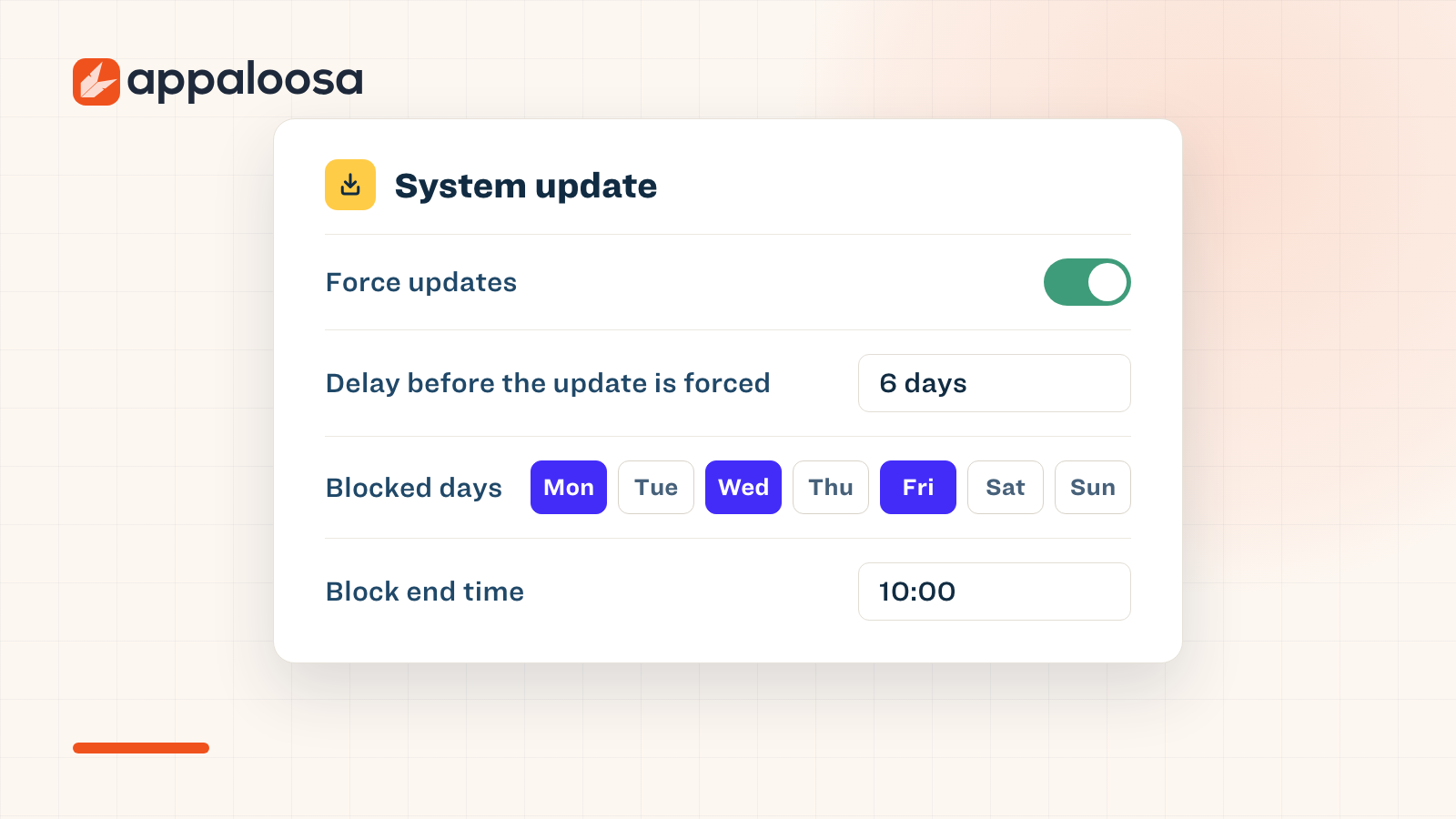
With Unified Update Controls (UUC), Android finally makes it possible to manage a company fleet's updates with precision. Until now, the available settings were limited to a few install modes and did not allow proper control over OS updates. UUC bring Android updates, Google Play system updates (Mainline) and Google services into a single set of rules, which you set directly from Appaloosa.
How does it work?
When an update is available on the device, the delay you chose starts running. During this delay, the user can install the update whenever they like. Once the delay has passed, the device downloads and installs the update without waiting for the user's approval, then restarts if needed. If you leave the delay empty, the update is forced as soon as it is available.
Blocked days and hours still take priority: if the delay ends during a blocked period, the update waits for the block to end before installing. For example, with a 7-day delay and a weekday block from 8 a.m. to 7 p.m., an update available on Monday at 10 a.m. will be forced the following Monday from 7 p.m.
Two channels work together, described in the Appaloosa support article (in French):
- System update type (Type de mise à jour système in the console): Automatic, Maintenance window or Postponed by 30 days. It is available on all managed Android devices.
- Update rules (Règles de mise à jour): force after a delay, block days and hours. They are reserved for recent Android versions.
Which one wins? For new Android versions and security updates, the rules replace the type when the device supports them. Otherwise, the type applies. Configure both: the type covers the whole fleet, and the rules refine it where they apply.
What does Unified Update Controls bring an IT admin?
- Security. Devices don't fall behind on fixes: the update is forced after the delay you choose.
- Simplicity. One configuration covers the OS, Google Play system updates and Google services.
- Control. You decide when updates install. They no longer interrupt a customer visit or a delivery round in the middle of the day.
What does Unified Update Controls let you manage?
Three kinds of updates, one set of rules: OS updates issued by the device manufacturer (major releases, minor and security updates), Google Play system updates (Mainline) and Google services such as Google Play services and Android System WebView.
Each rule uses days, hours or the age of the update, and ends in an outcome: block, ask the user for consent, or force. The first rule that matches applies.
Explore
See the full platform
Enrollment, apps, security, remote support: all in one place.
Explore Appaloosa →In Appaloosa: where do you set Android updates?
Everything sits in the Configuration tab of your managed Android configuration, in the System update card (Mise à jour système in the console).
The system update type offers three choices: Automatic (install as soon as the update is available), Maintenance window (automatic install during a daily window you set) and Postponed by 30 days (updates delayed by up to 30 days).
The update rules add finer control:
- Force updates, with a delay in days. With no delay, the update is forced immediately.
- Blocked days and hours: nothing installs on those days, between the block start and end times.
- Blocking takes priority: a forced update waits for the blocked period to end.
What are the limits?
- Company-owned devices only. The update rules don't support BYOD.
- Android 13 or later, Android 15 or later for a work profile on a company-owned device.
- The manufacturer matters. For new Android versions and security updates, the rules apply to Pixel from Android 13 and to other manufacturers (Samsung, Zebra and others) from Android 17. Below that, the system update type applies. The rules still cover Google Play system updates and Google services.
- Blocking has a maximum duration. Google doesn't let a device go without updates indefinitely.
Where should you start?
Read the Appaloosa support article on Android updates (in French) first, then test in the interface: create a test configuration, apply it to a few devices and watch what each channel does (system update type, then rules) before rolling it out to the fleet.
With Appaloosa, you also enforce the iOS or Android update with a deadline: past that date, the device shows as non-compliant and can lose access to company resources.
Going further
For the general method, read our guide to MDM patch management and automated OS updates. To structure your Android fleet, the Android Enterprise management page covers enrollment and policies in our cross-platform MDM.
Frequently asked questions
What is the difference between the system update type and the update rules?
The type (Automatic, Maintenance window, Postponed by 30 days) applies to all managed Android devices. The rules (forcing after a delay, blocked days and hours) are reserved for recent Android versions and replace the type for new Android versions and security updates when the device supports them.
Can you stop Android updates during working hours?
Yes. In Appaloosa, choose the blocked days and a block start and end time. Blocking takes priority over forcing.
Does Unified Update Controls work on BYOD?
No. The update rules apply to company-owned devices, from Android 13 (Android 15 for a work profile on a company-owned device).
Ready to try Appaloosa? Start free