


Syncing corporate contacts means pushing a shared directory to managed phones: employees get the internal numbers, and incoming calls show the contact name. With Appaloosa, you create a contact group in Assets and deploy it. Here is how.
Why sync the directory
Without a shared directory, an internal call shows as an unknown number and employees waste time looking up details. By syncing contacts through the MDM, the directory stays up to date on every device, with no manual import, and you manage it centrally.
Create and deploy a contact group in Appaloosa
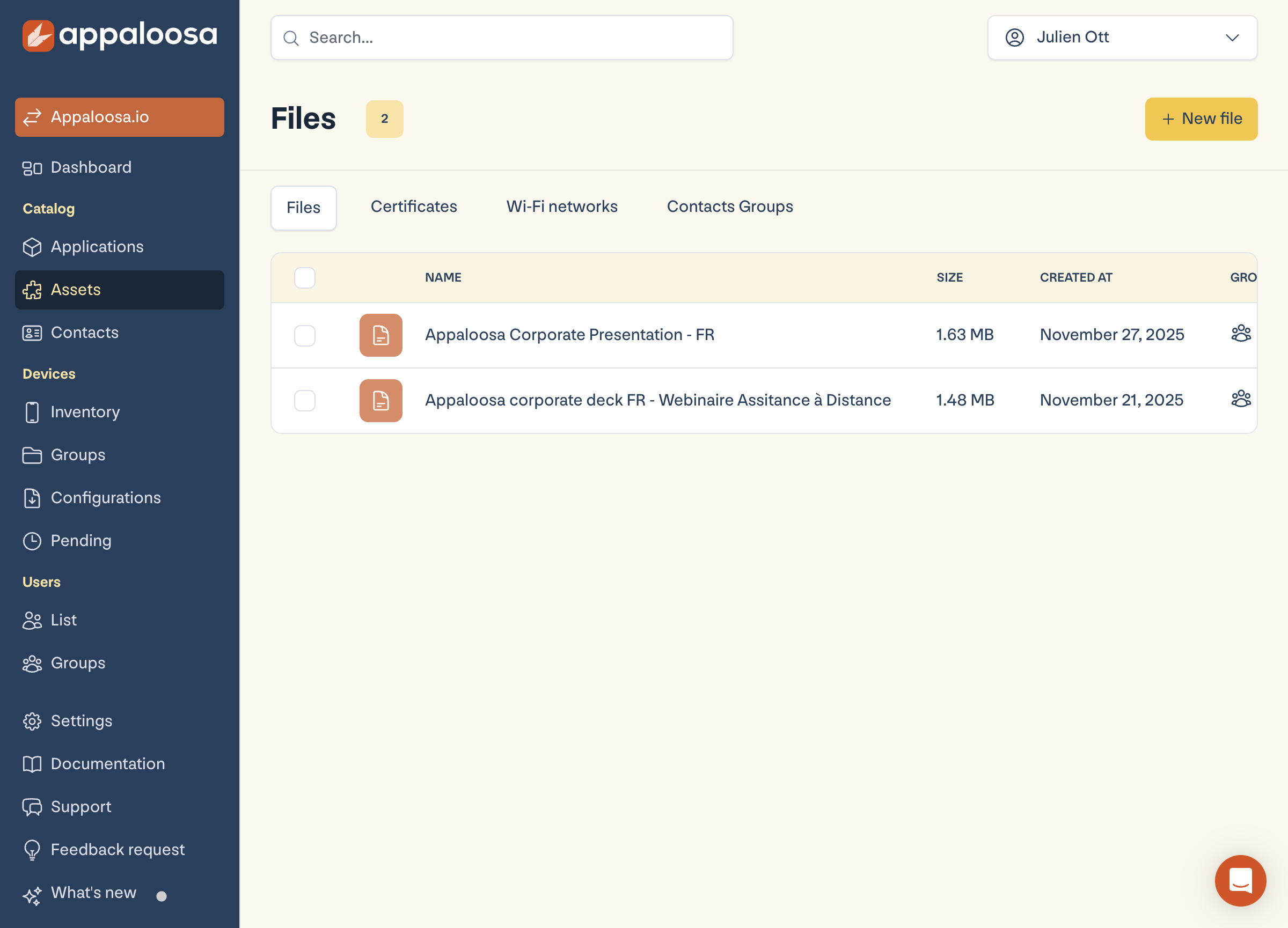
Open Assets, the Contact groups tab, then New contact group. Build the group (for example "All contacts" or a subset per department), then attach it to the relevant configurations or device groups.
Explore
See the full platform
Enrollment, apps, security, remote support: all in one place.
Explore Appaloosa →What users see
Once synced, the directory appears on devices: incoming calls from an internal number show the contact name, and employees can reach colleagues without typing a number. On BYOD, you can choose to show work contacts in the personal space while keeping the directory under control.
FAQ
Do the contacts persist if the device leaves the fleet?
No. The corporate directory is managed by the MDM: when a device is removed or its work profile wiped, the pushed contacts are removed.
Can you sync only some contacts?
Yes. You create separate contact groups (per department, per site) and deploy the right group to the right devices.
Ready to try Appaloosa? Start free