

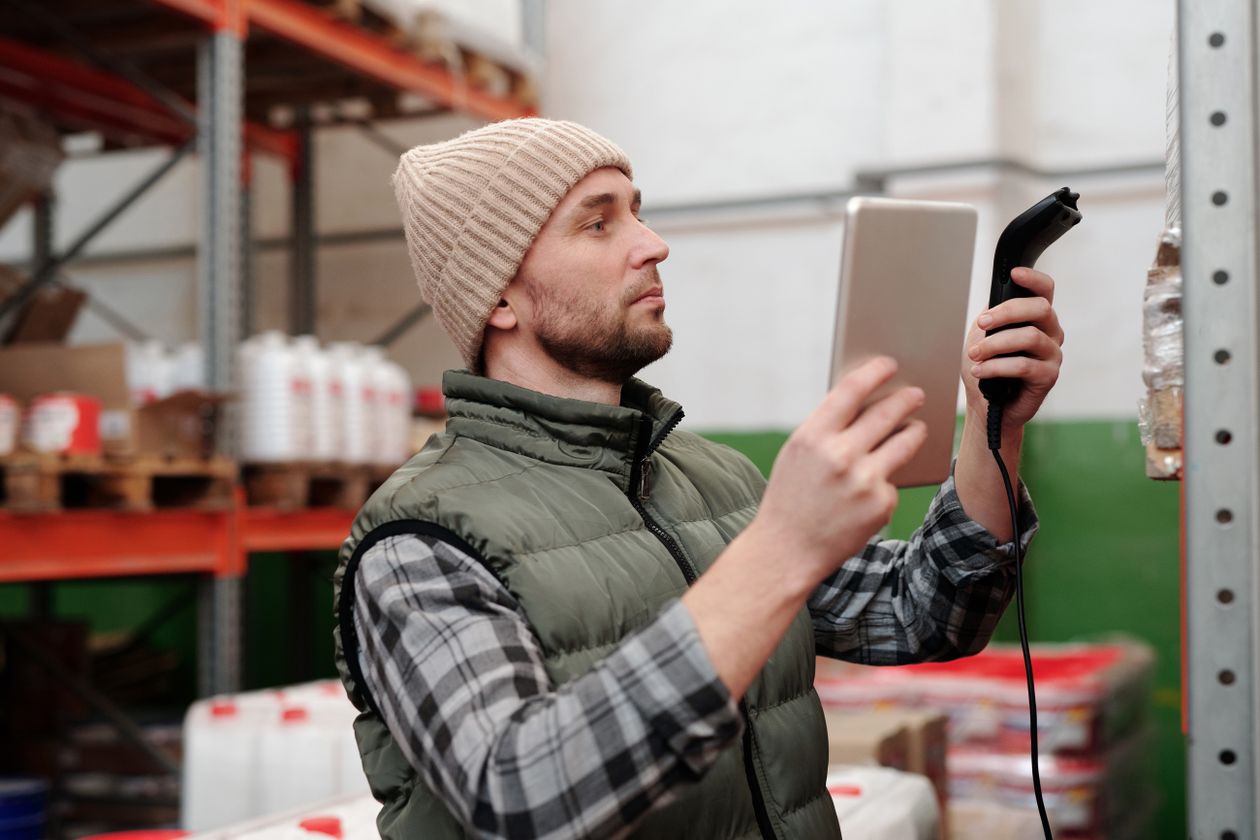
80% of the global workforce doesn't sit at a desk. They're on warehouse floors, in retail aisles, at construction sites, on delivery routes. And increasingly, they carry a company-issued phone or tablet that needs to be managed, secured, and updated without anyone from IT physically present.
That's the core challenge of MDM for frontline workers: managing devices at scale when the people using them have no time for IT tickets, no access to corporate Wi-Fi, and no patience for anything that slows them down.
What makes frontline device management different
Traditional MDM was designed for office workers with laptops. The assumptions baked into most solutions reflect that: stable Wi-Fi, users who can troubleshoot basic issues, devices that stay in one place. Frontline environments break every one of those assumptions. See the dedicated setup for frontline workers.
A retail associate's shared tablet might pass through six hands in a single shift. A delivery driver's phone operates on spotty cellular data. A warehouse scanner runs one critical app in kiosk mode and can't afford a 10-minute update window during peak hours.
The differences come down to three things:
Shared devices are the norm, not the exception. In an office, one person owns one laptop. On the frontline, devices rotate between shifts. Your MDM needs to handle multi-user scenarios, session-based access, and automatic profile switching without manual intervention.
Connectivity is unreliable. Policies need to sync when a signal is available and queue when it's not. An MDM that requires constant connectivity will leave gaps in your security posture every time a worker enters a dead zone.
Users won't self-service. A desk worker might file a ticket or restart their laptop. A frontline worker picking orders at 6 AM will just grab another device from the cart. Your MDM strategy needs to account for zero IT literacy at the point of use.
The five capabilities that matter most
Not every MDM feature matters equally for frontline deployments. After working with logistics companies, retailers, and field service teams, here's what separates a workable setup from one that creates more problems than it solves.
1. Zero-touch enrollment
Zero-touch enrollment means devices arrive pre-configured. A worker powers on a new phone, connects to any network, and the device automatically downloads its profile, apps, and restrictions. No QR codes to scan, no setup wizards to click through. For organizations deploying hundreds of devices across multiple sites, this is the difference between a one-day rollout and a three-week project.
2. Kiosk and single-app mode
Most frontline devices serve one purpose: scanning inventory, processing deliveries, taking orders. Kiosk mode locks the device to that purpose. Workers can't accidentally install apps, change settings, or browse the web. It sounds restrictive, but frontline workers consistently prefer it. They want a tool that works, not a general-purpose computer they have to figure out.
3. Over-the-air app deployment
Updating apps on 500 devices scattered across 30 locations can't involve USB cables or manual downloads. Your MDM should push app updates silently, schedule them for off-peak hours, and roll them back if something breaks. With a platform like Appaloosa's MAM, you can distribute private enterprise apps the same way, without going through public app stores.
4. Remote troubleshooting
When a device malfunctions at a remote site, sending an IT technician isn't practical. Remote support capabilities let your team view the screen, push fixes, restart services, or wipe a device without being on-site. For a restaurant chain with 200 locations, this alone can cut device-related support costs by 40% or more.
5. Geofencing and location-based policies
A device that leaves the warehouse shouldn't still have access to inventory management. Geofencing lets you trigger policy changes based on physical location: lock certain apps when a device exits a facility, enable camera restrictions in sensitive areas, or automatically switch profiles when a worker moves between zones.
Shared devices: the hardest problem to solve well
Shared device management is where most MDM solutions fall short for frontline use. The basic requirement sounds simple: multiple workers use the same physical device, and each needs appropriate access without lengthy login procedures.
In practice, this means your MDM needs to support session-based access. Worker A badges in (or enters a PIN), gets their apps and data. When Worker B takes over, the device wipes the previous session and loads a fresh profile. All of this should happen in under 30 seconds, because shift changeovers don't wait.
Android Enterprise has made this easier with its dedicated device mode, which supports multiple users on a single device with managed Google Play for app distribution. Apple's Shared iPad feature does something similar for iPadOS, though it requires Apple Business Manager for setup.
The practical challenge isn't the technology. It's the workflow. You need clear policies about what happens when a shift ends mid-task, how data persists (or doesn't) between sessions, and what level of personalization each worker gets. A good MDM handles the technical side. You handle the process design.
Book a demo
See Appaloosa run on your fleet
A 20-minute call on your real setup. Enrollment, private apps, security.
Book a demo →Choosing an MDM for frontline: what to ask vendors
If you're evaluating MDM solutions specifically for frontline or deskless workers, these questions will separate the solutions that actually work in field conditions from those designed for desk-bound use cases:
How does enrollment work at scale? You need zero-touch or at minimum QR-code enrollment. If the answer involves emailing instructions to end users, walk away.
What happens when a device is offline for 72 hours? Policies should queue and apply when connectivity returns. If the MDM reports the device as "non-compliant" after a few hours offline, it wasn't built for field conditions.
Can you deploy private apps without a public app store listing? Most frontline apps are custom-built or internally distributed. Your MDM should support private app catalogs, APK/IPA sideloading, and managed distribution through an enterprise app store.
What does the shared device experience look like? Ask for a demo of the actual worker experience: badge-in to app-ready time, session switching, data persistence. If it takes more than 30 seconds, it won't survive a real shift changeover.
What's the minimum connectivity requirement? Some MDM features work offline (kiosk mode, cached apps), others don't (real-time compliance checks). Know which is which for your specific deployment.
Real deployment patterns that work
Here's what we see in successful frontline MDM deployments, regardless of industry:
Retail: shared tablets in kiosk mode running POS and inventory apps. Devices charge overnight on a cart, receive updates between 2 AM and 5 AM, and are ready for the opening shift. Zero-touch enrollment means a broken device gets replaced in minutes: swap the hardware, the profile follows automatically.
Logistics and warehousing: rugged Android devices with barcode scanners. Single-app mode for the warehouse management system, with a secondary app for internal communication. Geofencing disables the camera inside the facility. Devices are assigned to shifts, not individuals.
Field service: phones assigned to individual technicians running scheduling, documentation, and navigation apps. Remote support is critical here because technicians work alone at customer sites. The MDM pushes compliance policies (encryption, screen lock, VPN) and can remotely wipe a device if it's lost on a job site.
Healthcare: shared tablets at nurse stations running EHR and medication administration apps. HIPAA compliance requires encryption, auto-lock after 2 minutes of inactivity, and the ability to remotely wipe patient data. Session management ensures each clinician sees only their patients.
Getting started with fewer headaches
Don't try to manage 2,000 devices on day one. Start with a pilot of 50 devices at one or two locations. Run it for 30 days. You'll discover things no planning document anticipated: workers propping devices open with tape to bypass screen timeouts, devices stored in places with no signal, apps that crash when the OS updates.
Use the pilot to build your actual policies, not theoretical ones. Then expand site by site, adjusting as you go.
And pick an MDM that your IT team can actually manage without specialized training. A solution like Appaloosa is designed for teams that need to deploy and manage mobile devices without a dedicated mobility engineer on staff. If your IT team can use a web browser, they can manage your fleet.
The frontline workforce is growing, and so is its dependence on mobile technology. Getting device management right now saves you from scrambling to fix it later, when you're at 10x the scale with 10x the complexity.
Related reading: MDM for Education: How Schools Manage Devices at Scale
Ready to try Appaloosa? Start free