

On a BYOD phone (an employee's personal device), you separate work data from personal data with an Android work profile: the company manages an isolated container for its apps and data, and never touches the personal side. With a MDM like Appaloosa, you enable this separation in a few settings. Here is how.
Why separate work and personal on BYOD
On BYOD, the device belongs to the employee. IT must secure company apps and data (email, business apps, files) without accessing personal photos, messages or apps. The Android work profile creates two sealed spaces on the same phone: the company controls its own, the employee keeps their privacy. It is the foundation of GDPR compliance on BYOD.
The separation settings in Appaloosa
In the Appaloosa console, open Configurations, select (or create) an Android BYOD configuration, then the Security tab. The Data sharing section controls the boundary between the two spaces:
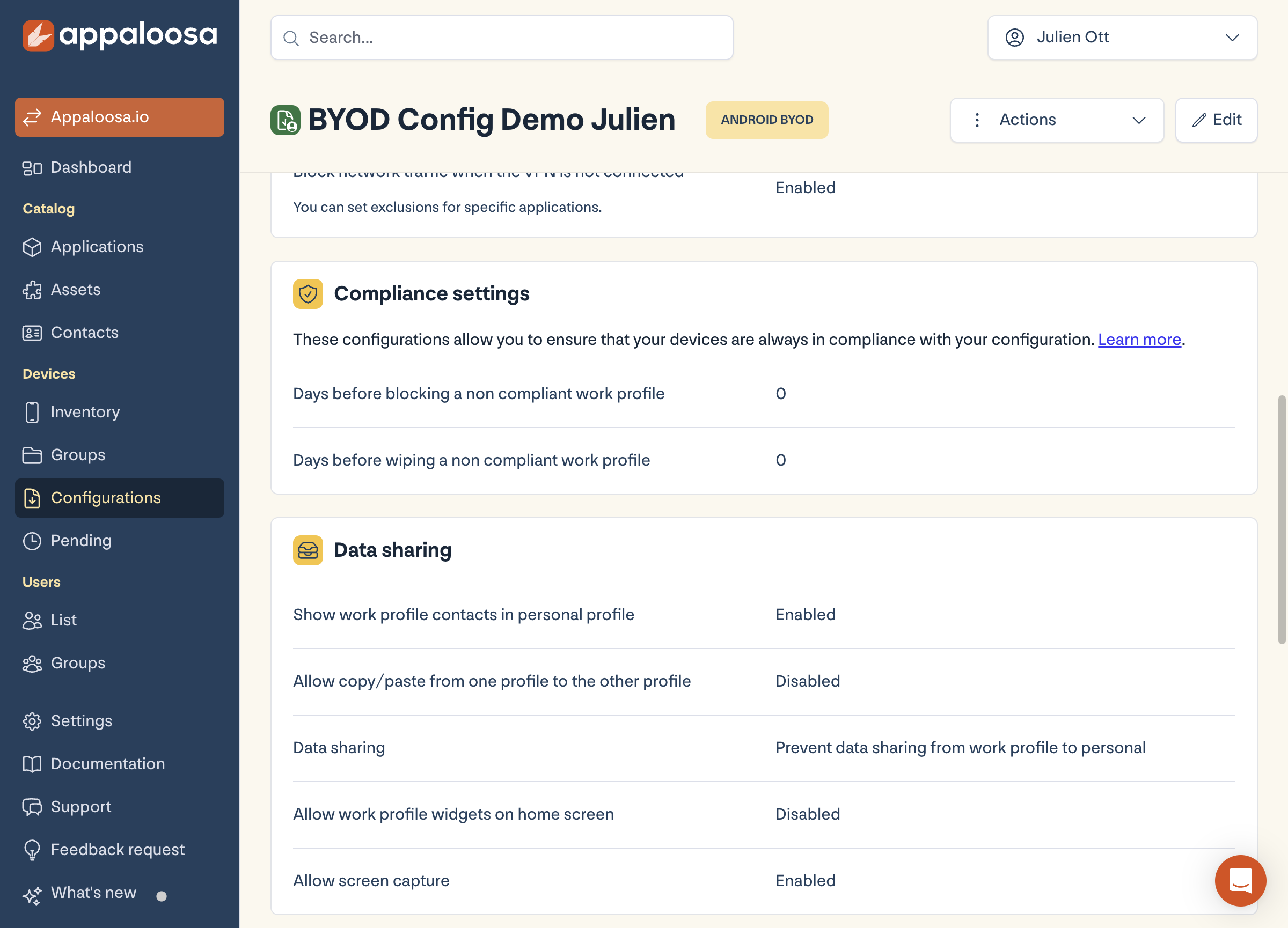
- Data sharing: prevent work to personal sharing: blocks company data from leaving the work space. The single most important setting to avoid leaks.
- Bidirectional copy/paste: disable it to stop work content being pasted into a personal app (and vice versa).
- Show work contacts in the personal space: enable it if you want the personal Phone app to display work contact names on calls, without exposing the directory.
- Work widgets on the home screen: controls whether work apps can place widgets on the personal side.
- Screenshots: allow or block screen capture in the work space.
Explore
See the full platform
Enrollment, apps, security, remote support: all in one place.
Explore Appaloosa →What happens if the device is no longer compliant
Still in the Security tab, the Compliance settings section lets you set a delay before blocking then wiping a non-compliant work profile. Only the company container is wiped: personal data stays intact.
FAQ
Does the work profile give access to my personal data?
No. The company only sees and manages the work space. Personal photos, texts, apps and accounts are invisible and out of reach of the MDM.
What happens to the work space when an employee leaves?
IT remotely wipes only the work profile. The employee's personal phone and private data are untouched.
Ready to try Appaloosa? Start free