

With macOS 27, you can decide which apps are allowed to run on your managed Macs. You can block a few apps, or allow only the ones you choose.
This is a new capability from Apple, announced at WWDC26. Appaloosa supports it from day one of macOS 27. This article explains how it works and how to set it up.
What macOS 27 actually adds
Apple's new declaration is com.apple.configuration.app.settings. On the Mac it carries two keys that matter here: AllowedBinaries and DeniedBinaries. One says "only these may run", the other says "these may never run". Enforcement happens through the Endpoint Security framework, so the block lands at execution time rather than at install time.
Three things make this better than what we had before.
- It's declarative. The Mac holds the rule and applies it itself, instead of waiting for the server to push a command and hope it arrives. If you're new to that model, our DDM glossary entry covers the mechanics.
- It matches on the app's signature, not on a name or a bundle ID that anyone can edit. Renaming
Torrent.apptoNotes.appbuys nothing. - It's a real deny path. Apps stop launching, and an app already running when the rule arrives gets terminated.
The old payload, com.apple.applicationaccess.new, is deprecated in macOS 27. It still works for now on older systems, but Apple has told everyone where this is going. Read the full WWDC26 app management updates in the Apple Platform Deployment guide if you want the raw key reference.
Worth being precise about scope: this is not app deployment. Nothing gets installed or removed by these lists. They tell macOS what it's allowed to launch, and that's it. Deployment stays where it always was, in the app catalog side of mobile application management.
How macOS identifies an app
Both lists describe an app with the same five fields. The first three answer "which app". The last two only narrow that answer down, which is why every row needs at least one of the first three. A path on its own identifies nothing.
Team ID |
The developer account that signed the app. Every app signed by that developer matches. |
CDHash |
The fingerprint of one exact compiled build. It matches that build and no other. |
Signing ID |
The identifier the developer gave the app, for example com.apple.iCal. |
Path prefix |
Restricts the match to a location, for example /Applications/Name.app. |
Signing state |
Restricts the match to a distribution channel: App Store, TestFlight, Developer ID, Enterprise, Apple, or All. |
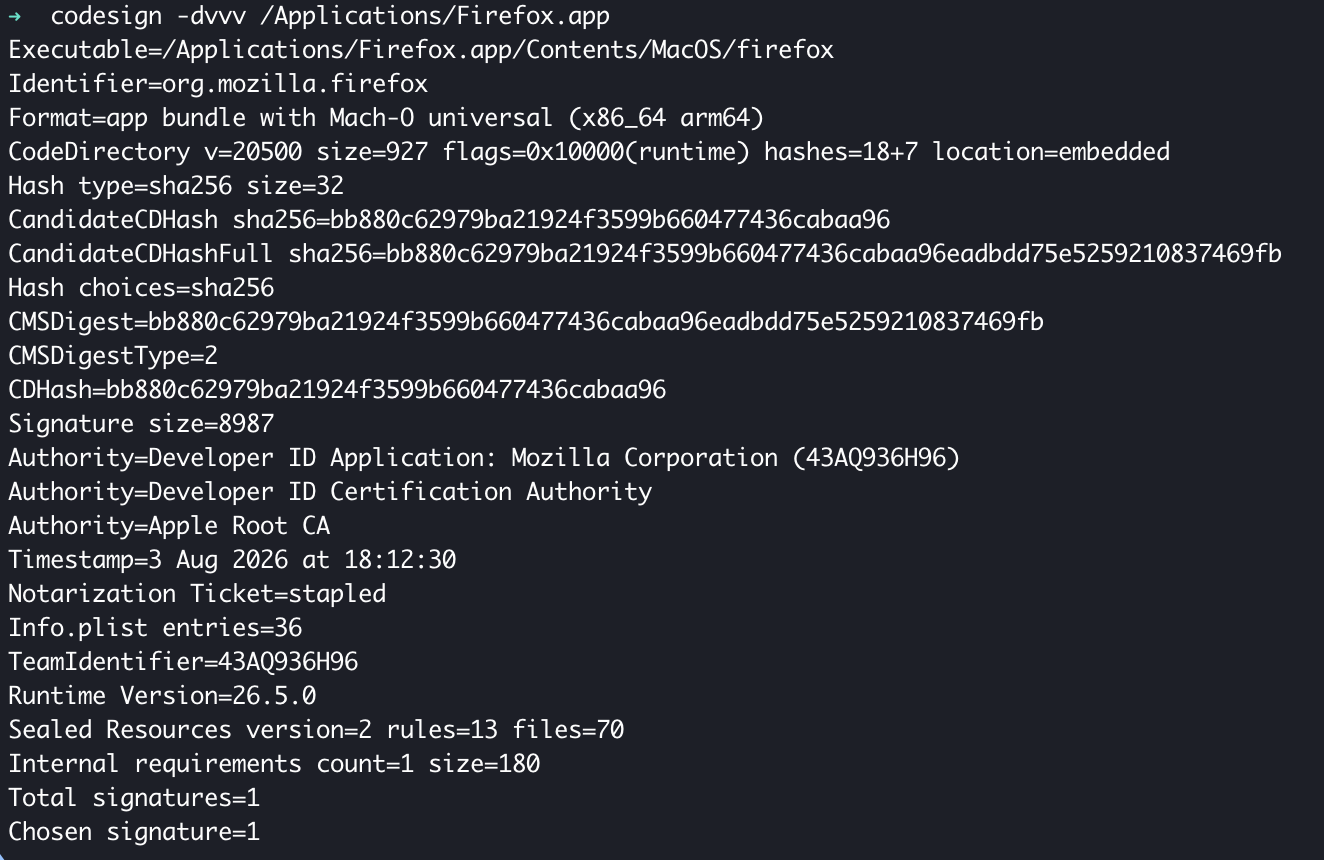
You read these values off a real installation with codesign, which ships with macOS:
$ codesign -dvvv /Applications/Firefox.app
...
Identifier=org.mozilla.firefox
...
TeamIdentifier=43AQ936H96
...
CDHash=bb880c62979ba21924f3599b660477436cabaa96
Identifier is your Signing ID, TeamIdentifier is your Team ID, CDHash is your CDHash. The Authority lines tell you where the app came from, which is what the signing state field expresses. An app signed Developer ID Application maps to DeveloperID, an App Store app maps to AppStore.
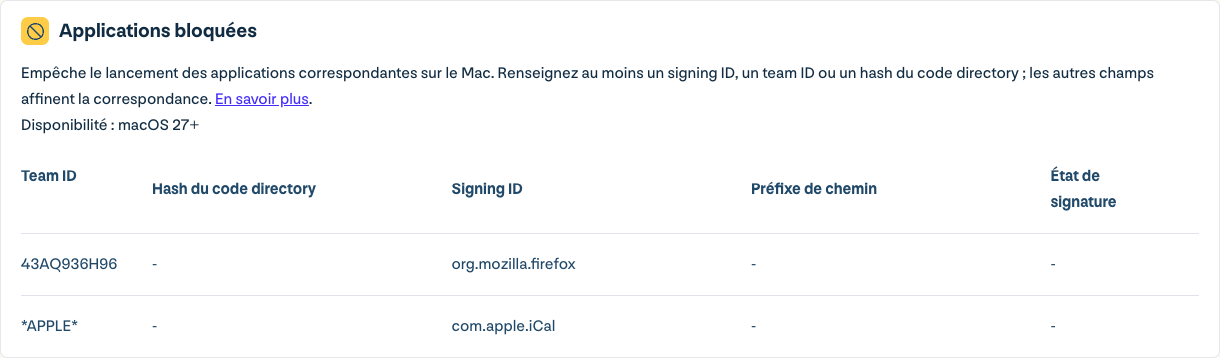
Two cases trip people up. Apple's own apps report TeamIdentifier=not set, so codesign gives you nothing usable there. The lists accept the literal value *APPLE* instead, and you pair it with the Signing ID: *APPLE* plus com.apple.iCal. It survives system updates, which a CDHash won't.
The other case is web clips. They all share one Signing ID, com.apple.Safari.WebApp. Block it and every web clip on the Mac stops opening. Run an allow list without it and the webapps you deploy from Appaloosa won't open either.
Book a demo
See Appaloosa run on your fleet
A 20-minute call on your real setup. Enrollment, private apps, security.
Book a demo →Blocking a list of apps
This is the case most teams actually need. In the Blocked applications card, add one row per app you want to stop, fill in at least a Signing ID, a Team ID or a CDHash, and save.
A blocked app stops launching. Everything you didn't list keeps working exactly as before. That asymmetry is the whole point: you're taking away three things, not granting six hundred.
Team ID is usually the right granularity. Blocking a Signing ID kills one app; blocking the Team ID kills everything that vendor ships, including the helper they rename next spring. Pick per app only when you genuinely want the rest of the vendor's catalog to stay available.
Allowing only a list
The Allowed applications card runs the other direction and it's much stricter. The moment it contains a single row, every app not in the list stops working. Safari. Mail. System Settings. Apple's apps get no free pass.
Rows here need at least a Team ID or a CDHash. A Signing ID on its own is not accepted by macOS on this list, which catches people out because the blocked card does accept it.
An empty card means no restriction, not "nothing is allowed". Leave it empty unless you really intend to pin the Mac to a known set of apps.
And if an app somehow ends up in both cards, the block wins. It won't run, allow list or not.
Keeping your deployed apps alive
Under the allowed list there's an option, Always allow applications deployed from Appaloosa in addition to the list above, on by default. It maps to Apple's AlwaysAllowManagedApps key and it saves you from listing every managed app by hand. Turn it off only when the Mac must run strictly what you typed and nothing more.
On your Default configuration each row carries a padlock. Locking a row copies it to your other macOS configurations and stops them editing it. Inheriting configurations show the row but can't change or delete it. That's how you get one baseline across a fleet without retyping it per site.
What the user sees
Nothing, until they try to launch something they shouldn't. Then macOS puts up an alert. There's no silent failure, no app icon bouncing forever in the Dock with no explanation.
Tell your help desk before you turn this on. The alert says the app is blocked, it doesn't say who blocked it or why, and a user who was happily running that app yesterday will file a ticket. A short internal note beats three days of confusion.
Five traps worth knowing about
System apps have side effects. Most system binaries stay permitted no matter what, but the ones you can block can take other features down with them. Block the App Store and your users also lose the ability to accept the terms that volume purchasing needs, which quietly breaks your VPP distribution.
Apple Business Manager apps still need a launch path. Licensing an app through Apple Business Manager and installing it says nothing about whether it may execute. If you run a strict allow list, license and allow are two separate decisions.
CDHash changes with every build. It's the most precise field and the most fragile one. The next Chrome update ships a new CDHash and your rule silently stops matching. Use it for a pinned internal tool where that's the behavior you want. Use Team ID everywhere else.
Empty does not mean locked down. Repeating this because it's the one that causes the 2am call: an empty allowed card restricts nothing.
Don't test on your own Mac first. Put a spare machine in a test configuration. A strict allow list that forgot System Settings is an annoying afternoon.
Available in Appaloosa on day one
Both cards live in the Applications tab of a macOS configuration, next to the rest of your Mac management settings. They need macOS 27 or later. Devices still on macOS 26 ignore them, so you can configure now and let the rule take effect as machines update.
Adding, editing or removing a row pushes the updated lists to every device in the configuration. Setup details and the field by field walkthrough are in the support article on application control for macOS devices.
One thing that hasn't changed with macOS 27: iPhone and iPad use bundle IDs rather than signatures for the equivalent keys, so the rules you write for Macs don't transfer. If you manage both, treat them as separate policies. Our iOS and iPadOS management page covers that side.
FAQ
Does blocking an app remove it from the Mac?
No. The app stays on disk, it just won't launch. These lists control execution, not installation. Removing software is a deployment action, handled separately.
My old app restriction profile still works. Do I have to migrate?
Not today, but plan for it. The com.apple.applicationaccess.new profile is deprecated in macOS 27. Deprecated means Apple has stopped investing in it and will eventually stop honoring it, so move the rules you care about to the new lists while you have the luxury of testing.
Do I have to allow Apple's apps explicitly?
Yes, if you use the allowed list. Safari, Mail and System Settings are blocked like anything else when they're absent. Add them with the Team ID *APPLE* and the app's Signing ID, which keeps matching across system updates. For background on how Apple's management stack fits together, see our macOS MDM glossary entry.
Ready to try Appaloosa? Start free