


To enforce a lock code on a work device, you define a passcode policy in the MDM: the user must set a PIN or password that meets your criteria, otherwise access to the work space is blocked. Here is how to do it in Appaloosa.
Why enforce a passcode
A device with no lock is an open door if lost or stolen. A passcode policy guarantees that no device reaches company resources without minimal authentication, and lets you require a level of strength (length, complexity).
Configure the passcode policy in Appaloosa
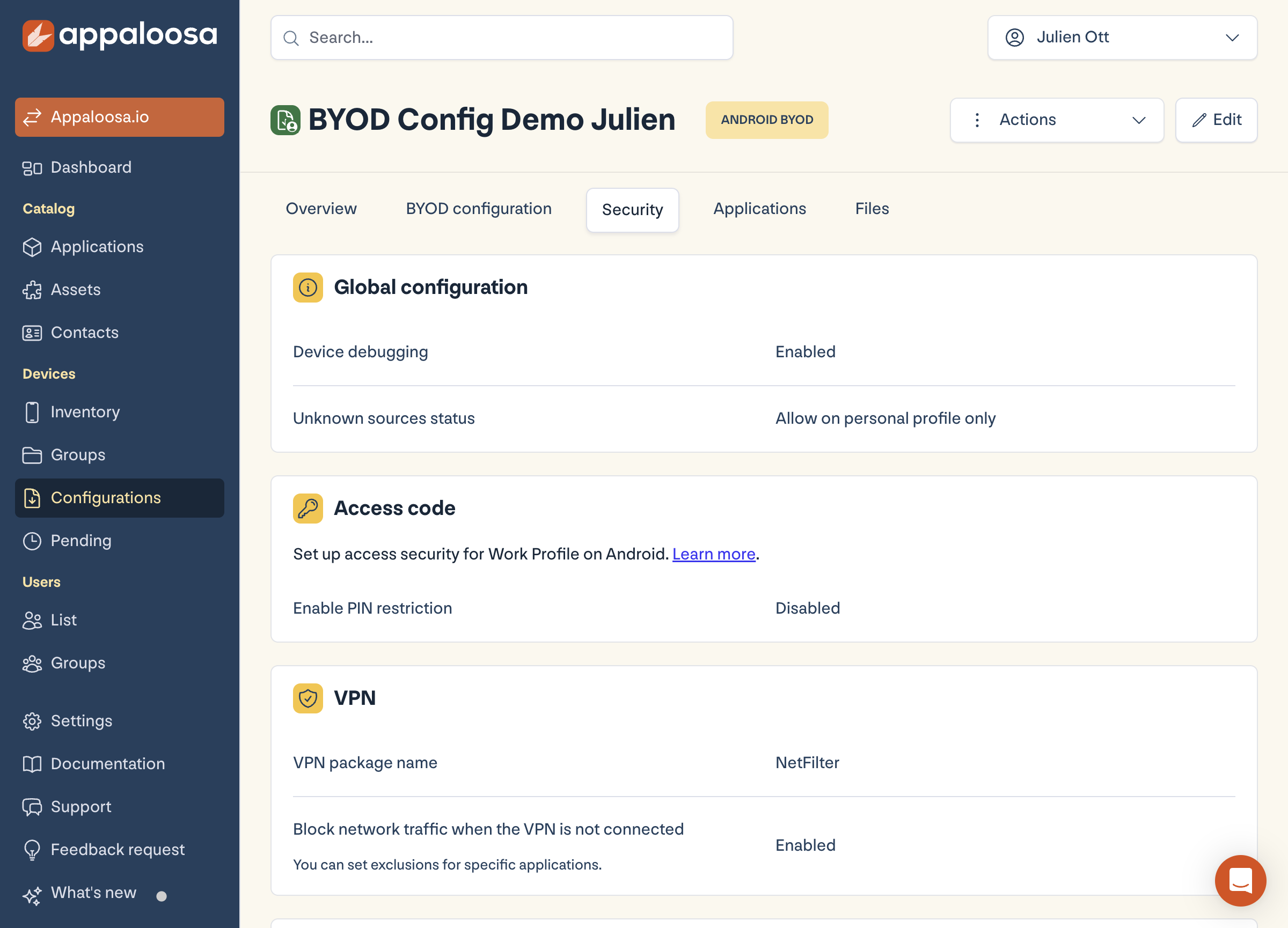
Open Configurations, your Android configuration, Security tab. In the Passcode section ("Set the access security of the Work Profile"), enable Enable a PIN code restriction. You can then require a code the first time the work profile is opened.
Book a demo
See Appaloosa run on your fleet
A 20-minute call on your real setup. Enrollment, private apps, security.
Book a demo →Best practices
- Require a non-trivial code (avoid 4-digit PINs for sensitive data).
- Pair the passcode policy with remote lock and lost mode to cover device loss.
- On BYOD, the code protects the work profile without constraining the personal side.
FAQ
Does the code apply to the whole phone?
On BYOD, it secures access to the work profile. On a fully managed device, the policy can cover unlocking the whole device.
See the full platform Explore Appaloosa