

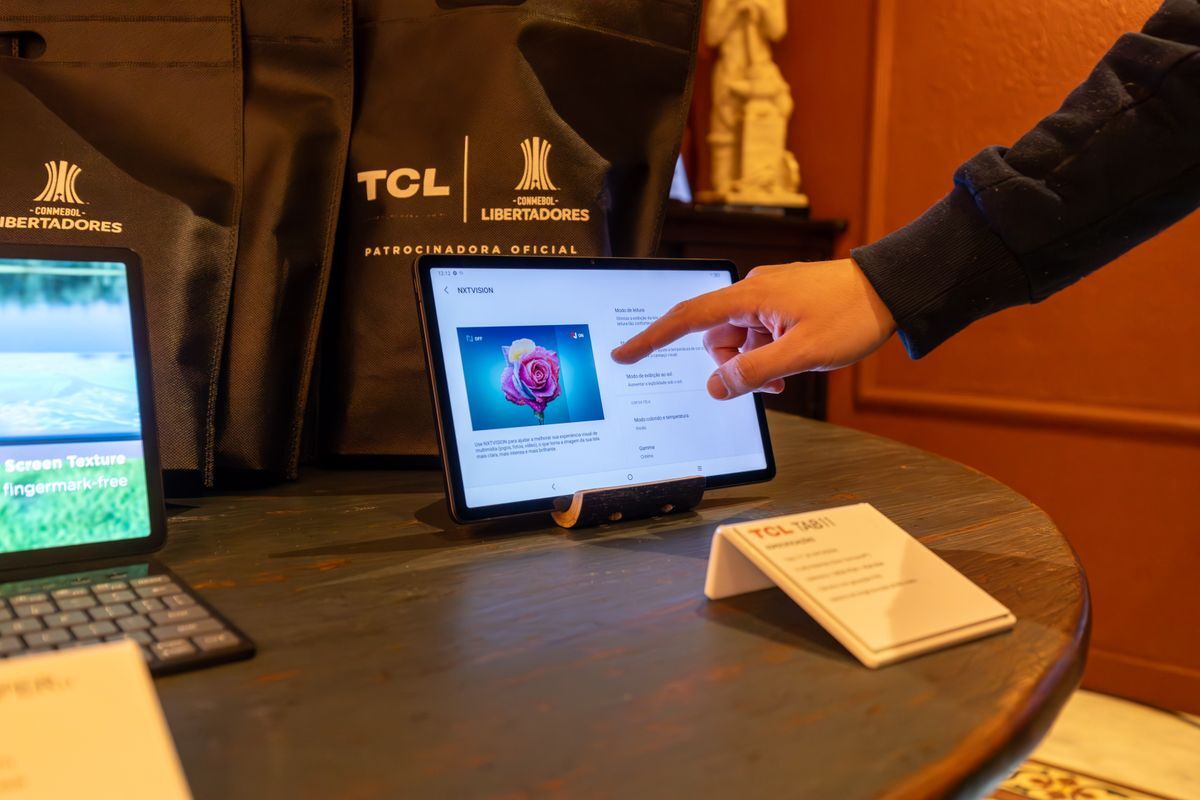
A tablet mounted behind a restaurant counter, cycling through the daily menu. A screen in a hotel lobby showing check-in instructions. A row of displays in a warehouse floor listing pick orders. These are all digital signage, and they all share the same problem: someone has to manage the devices running them.
That's where MDM comes in. Mobile device management turns consumer tablets and media players into reliable, remotely managed signage endpoints. No USB sticks, no on-site visits, no praying that the screen didn't crash overnight.
Why Digital Signage Needs MDM
Digital signage hardware is cheap. A $300 Android tablet or an iPad does the job. The expensive part is keeping 50 or 500 of them running the right content, on the right schedule, without someone physically touching each one.
Without MDM, you get:
- Screens stuck on error messages nobody notices for days
- Employees "borrowing" signage tablets for personal use
- OS updates that break your signage app at 2 AM
- No way to know which devices are online or offline
MDM solves this by giving your IT team a single dashboard to configure, lock down, monitor, and update every display device remotely. You push content updates from your desk. You get alerts when a device goes offline. You block everything except the signage application.
Kiosk Mode: The Foundation of Managed Signage
Kiosk mode is the feature that makes signage work. It locks a device to a single app (or a small set of apps) and disables everything else: the home button, notifications, the settings menu, the ability to install other apps.
For signage, single-app kiosk mode is the standard setup. The device boots straight into your signage player app (ScreenCloud, OptiSigns, Yodeck, or a custom HTML5 app) and stays there. No accidental exits. No curious employees poking around in Chrome.
Most MDM platforms offer kiosk mode, but the implementation varies. Key capabilities to look for:
- Single-app lock that persists across reboots
- Custom branding on the lock screen (your logo, not the MDM vendor's)
- Scheduled restarts to clear memory leaks (signage apps are notorious for this)
- Remote exit from kiosk for maintenance without physical access
Choosing Devices for Managed Signage
Android tablets dominate digital signage deployments, and for good reason. They're cheap, widely available, and Android Enterprise gives IT teams granular control through MDM. Samsung's commercial displays (like the QB series) even ship with a built-in signage player.
iPads work well too, especially in customer-facing environments where the hardware quality matters (think luxury retail or hotel concierge). Apple Business Manager handles enrollment, and Appaloosa's MDM pushes the signage app silently through VPP.
A few practical considerations:
- Screen size matters. For menu boards, 10-inch tablets are too small. Consider 24"+ commercial displays with Android built in, or a media player (Chromebit, Amazon Fire TV Stick) connected to a regular screen.
- Power and mounting. Signage devices run 12-18 hours a day. Use commercial-grade power supplies and VESA mounts. Consumer chargers fail within months.
- Connectivity. Wi-Fi works for most setups, but ethernet adapters add reliability in environments with thick walls or RF interference (warehouses, hospitals).
Explore
See the full platform
Enrollment, apps, security, remote support: all in one place.
Explore Appaloosa →Deploying Signage at Scale with Zero-Touch
Enrolling 5 signage tablets by hand is fine. Enrolling 200 across 40 locations is not.
Zero-touch enrollment (Android) and Automated Device Enrollment (Apple) let you ship tablets directly from the supplier to each location. The device powers on, connects to Wi-Fi, automatically enrolls in your MDM, downloads the signage app, enters kiosk mode, and starts displaying content. Nobody at the location needs to do anything beyond plugging it in and connecting to Wi-Fi.
This is the difference between a signage rollout that takes two weeks and one that takes two months. Your supplier configures the zero-touch portal once, and every future device follows the same path.
Content Updates and Remote Management
The daily operations of managed signage come down to two things: pushing content and fixing problems remotely.
Content delivery depends on your signage software. Most cloud-based players (ScreenCloud, Rise Vision, Yodeck) handle content scheduling through their own dashboard. MDM's role is making sure the player app stays installed, updated, and running. If you're using a custom web app, MDM can push URL changes directly through managed app configuration.
Remote troubleshooting is where MDM earns its keep. When a screen goes dark at a branch office 500 km away, you need to diagnose the issue without dispatching someone. Remote support features let you view the screen, restart the app, force a reboot, or push a new configuration. Most signage issues (frozen app, lost Wi-Fi, accidental exit from kiosk) resolve in under five minutes remotely.
Security Considerations for Public Displays
Signage devices sit in public spaces, which creates specific security risks. A tablet mounted in a store window is a target for theft, tampering, or unauthorized access to your corporate network.
MDM mitigates this through:
- Remote wipe. If a device is stolen, erase all corporate data instantly.
- Network restrictions. Limit the device to your signage server and MDM server only. No open browsing, no app store access.
- Disable USB and Bluetooth. Prevent data exfiltration through physical ports.
- Geofencing alerts. Get notified if a device moves outside its expected location.
These aren't theoretical risks. Retail chains have found their signage tablets repurposed as free YouTube players by staff, or worse, connected to the corporate Wi-Fi with no restrictions, creating an open door into the network.
Getting Started
A managed signage deployment doesn't require a massive IT project. Start with a pilot: 3-5 devices at one location, enrolled through your MDM, locked in kiosk mode, running your signage app.
Validate three things during the pilot: that the kiosk lock holds after reboots and power outages, that content updates push reliably through your signage platform, and that you can troubleshoot remotely without on-site access.
Once the pilot proves stable, scale up with zero-touch enrollment. Order devices pre-configured from your supplier, ship them to each location, and let MDM do the rest.
Appaloosa supports kiosk mode, zero-touch enrollment, and remote support across iOS and Android, making it a practical choice for signage deployments of any size. Start a free trial to test it with your first batch of display devices.
Ready to try Appaloosa? Start free